Interactive CLI dashboard
Worre ships one CLI executable. Run it without arguments to open the keyboard-driven dashboard. Pass a command such as overview or deployments to get output you can use in a script. See the CLI command reference for syntax and examples.
Download and try the dashboard
Section titled “Download and try the dashboard”- Download the standalone Windows x64 CLI ZIP and extract it.
- Open PowerShell in the extracted folder. The executable includes the .NET runtime.
- Run the sample dashboard with the command below. It opens offline and lets you preview approvals without contacting Azure DevOps.
.\worre-cli.exe --sample
If you installed Worre Desktop, its installer also provides the CLI. Use worre-cli --sample from a new terminal.
Connect a project
Section titled “Connect a project”- Run
.\worre-cli.exewithout arguments. - Enter your Azure DevOps organization and project name. Paste an organization-scoped PAT into the masked field. See PAT scopes by task.
- Choose Load project. Use the arrows to browse, Space to select or deselect, and Tab to move between lists.
- Choose Save workspace. The CLI stores the project and selections locally. Next time, paste your PAT and choose Open saved, or set
WORRE_PATbefore launching.
Browse deployments and review approvals
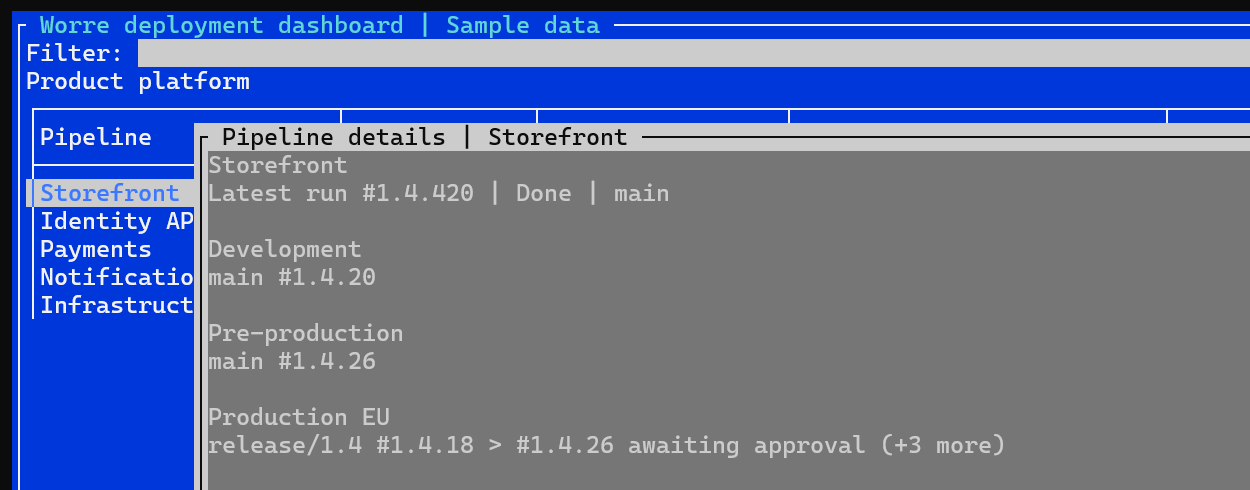
Section titled “Browse deployments and review approvals”Use Filter to find a pipeline, then move focus to the grid. Use the arrow keys to select a pipeline row.
| Key | Action |
|---|---|
| Enter | Open scrollable pipeline details. All selected environments are available here, including columns that extend beyond the grid. |
| A | Show waiting approvals for the selected pipeline. |
| R | Refresh the dashboard. |
| S | Open workspace setup. |
| Q | Quit the dashboard. |
To approve a run, press A, select the waiting build and press Enter. Review the build ID, environment, stage and branch. When eligible older runs are waiting at the same gate on the same pipeline and branch, the confirmation lists their IDs and offers Approve and cancel. Worre requests those cancellations after Azure DevOps confirms the approval.