AZURE DEVOPS · CHOOSING YOUR VIEW
Worre and CatLight for Azure DevOps: which view do you need?
I built Worre because I wanted to see which build was on each Azure DevOps environment without opening all the pipeline tabs.
If you're looking at Worre and CatLight, start with the question you want the dashboard to answer. There is overlap in build context and desktop notifications, but the two products put different things at the centre of the view.
What needs my attention?
CatLight describes itself as an action centre for developers. Its Azure DevOps integration covers builds and pipelines, pull requests and work items. Its dashboard brings action items together, with desktop notifications and a tray icon that reflects their status.
That is a broader workflow than Worre currently covers. If pull-request or work-item monitoring is part of what you need, include that in your evaluation rather than assuming an environment dashboard will cover it.
Source: CatLight official overview
Source: CatLight Azure DevOps integration
Which build is deployed where?
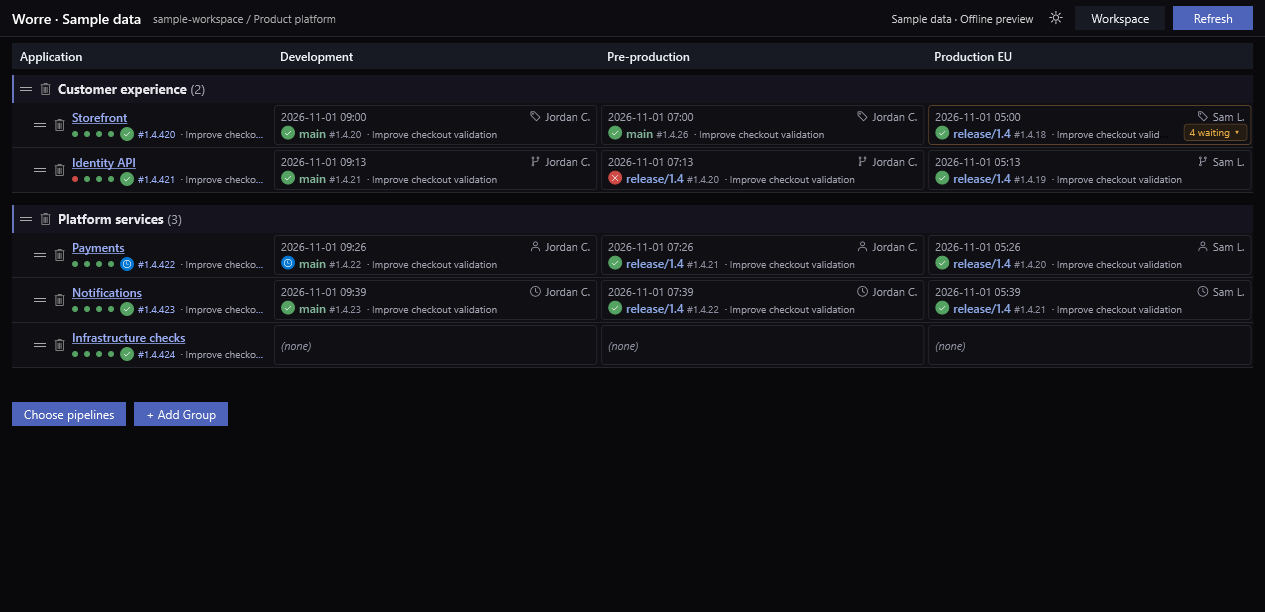
Worre puts applications and environments side by side. You choose the pipelines and environments, arrange the columns, and inspect the associated build context. Approval waits stay separate from the build already deployed, so a run waiting to move forward doesn't replace the deployment you are trying to identify.
It is a free Windows 10/11 x64 application for Azure DevOps Services. Sign-in uses your Microsoft Entra work account; there is no personal access token to create. Your organization may require administrator consent.
Check the native view first
Azure DevOps already records deployment history for Environments. Under Pipelines > Environments, select an environment and open Deployments to inspect the runs targeting it. That may be enough for your workflow.
Worre is useful when you want a desktop overview across the applications and environments you selected. It reads deployment records; the view does not independently verify what is running on a server after changes made outside those pipelines.
Microsoft's environment documentation: Create and target Azure DevOps environments
Step-by-step guide: Which build is deployed in each environment?
Try the view before connecting
Download Worre and choose Try sample data in the setup window. The sample workspace works offline, so you can inspect the layout before connecting a project.
For your own deployment history, your pipelines need to use Azure DevOps Environments. Classic release pipelines and on-premises Azure DevOps Server are not supported. Worre also does not provide pull-request or work-item monitoring.
Those boundaries are worth checking before installing another tool. If the environment overview is the part you need, try your own project and see whether it makes the deployment state easier to follow.